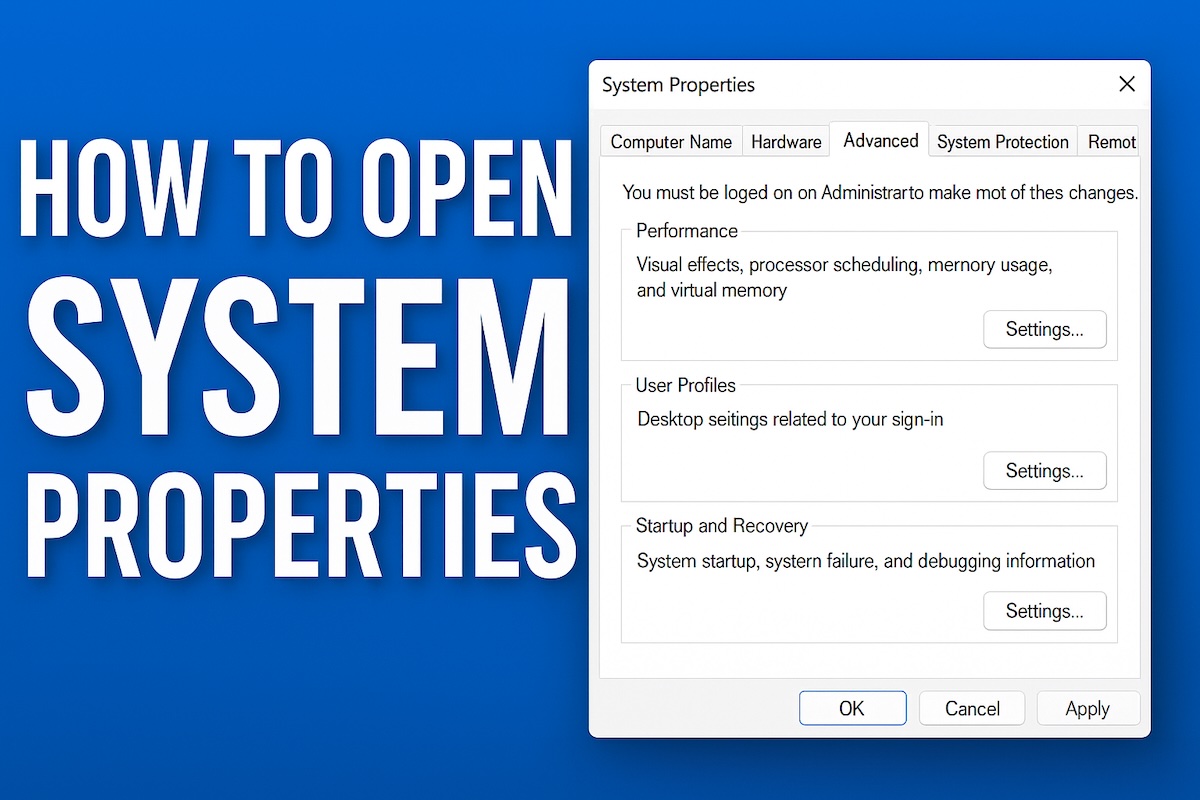
Windows 11 introduces a refreshed interface and updated Settings app, but many classic tools from earlier versions of Windows are still available. One of these is System Properties, a utility that allows users to access advanced system settings, manage performance options, configure startup and recovery settings, view computer information, change the computer name, manage remote access, and open Device Manager or System Protection.
Although Microsoft has moved many settings to the modern Settings app, System Properties remains an important tool for IT professionals, developers, advanced users, and even everyday Windows users who need access to features that aren’t easily available elsewhere.

If you’ve recently upgraded from Windows 10, you may notice that opening System Properties is no longer as straightforward as before. Fortunately, there are several reliable methods that still work in Windows 11.
In this guide, you’ll learn multiple ways to open System Properties in Windows 11, along with information about what you can do once it’s open.
What Is System Properties in Windows 11?
System Properties is a classic Windows configuration window that provides access to various advanced system settings.
It includes several tabs such as:
- Computer Name
- Hardware
- Advanced
- System Protection
- Remote
From these tabs, you can:
- Change your PC name
- Join a domain or workgroup
- Configure virtual memory
- Manage performance settings
- Edit environment variables
- Configure startup and recovery
- Create restore points
- Manage Remote Desktop settings
- Open Device Manager
Even though Windows 11 redirects some options to the Settings app, System Properties still serves as the gateway to many advanced configuration tools.
Method 1: Using the Start Menu Search
The quickest and most straightforward way to access System Properties in Windows 11 is through the Start menu search functionality.

Steps:
- Click on the Start button or press the Windows key on your keyboard
- Type “System Properties” in the search box
- Look for “System Properties” in the search results and click on it
- Alternatively, you can type “sysdm.cpl” which is the direct command for System Properties
This method is particularly useful because Windows 11’s search function is highly responsive and will typically show System Properties as one of the top results as soon as you start typing.
Method 2: Through Settings App
Windows 11 emphasizes the modern Settings app over the traditional Control Panel, and you can access system information through this route, though it requires a few additional steps to reach the classic System Properties dialog.
Steps:
Press Windows key + I to open Settings, or click Start and select Settings
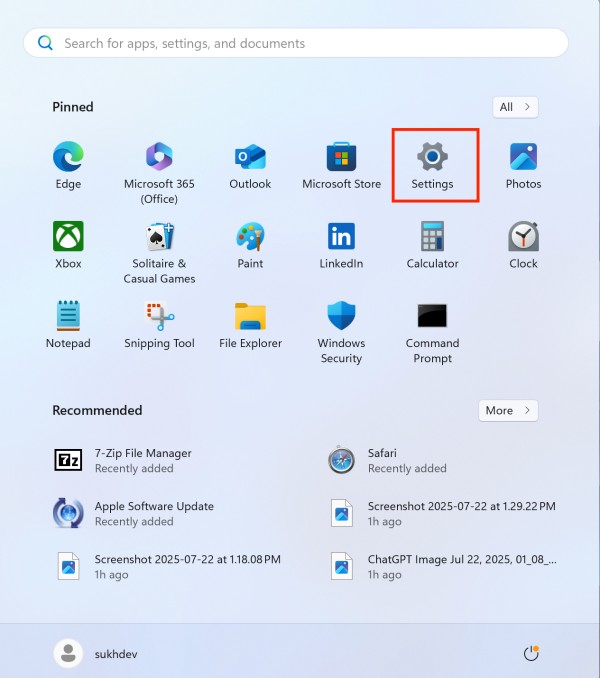
Navigate to System in the left sidebar
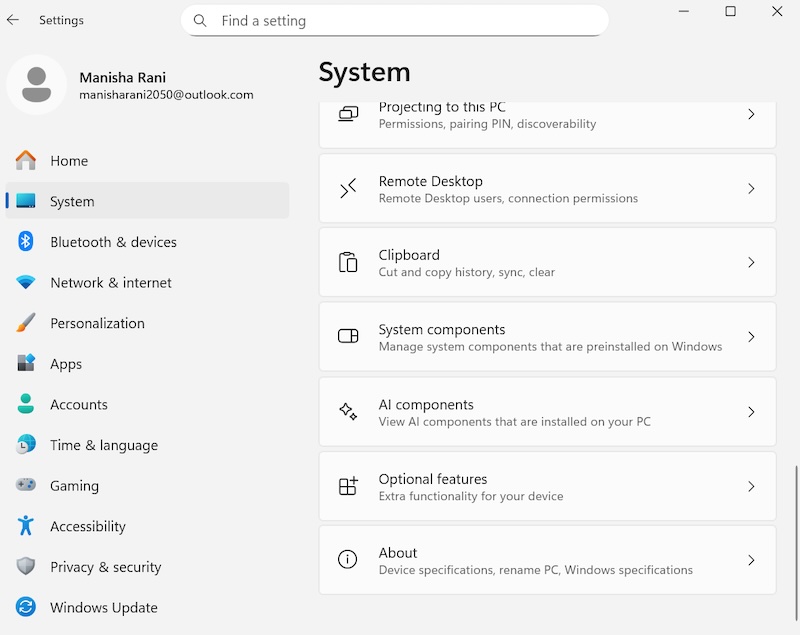
Scroll down and click on About at the bottom of the System page
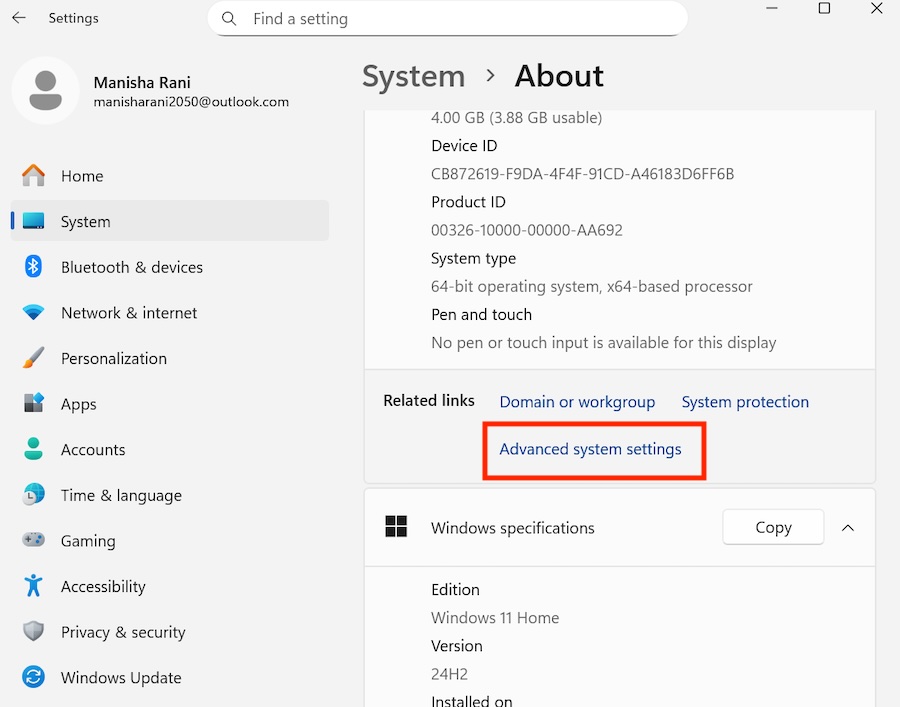
In the About section, look for Advanced system settings link
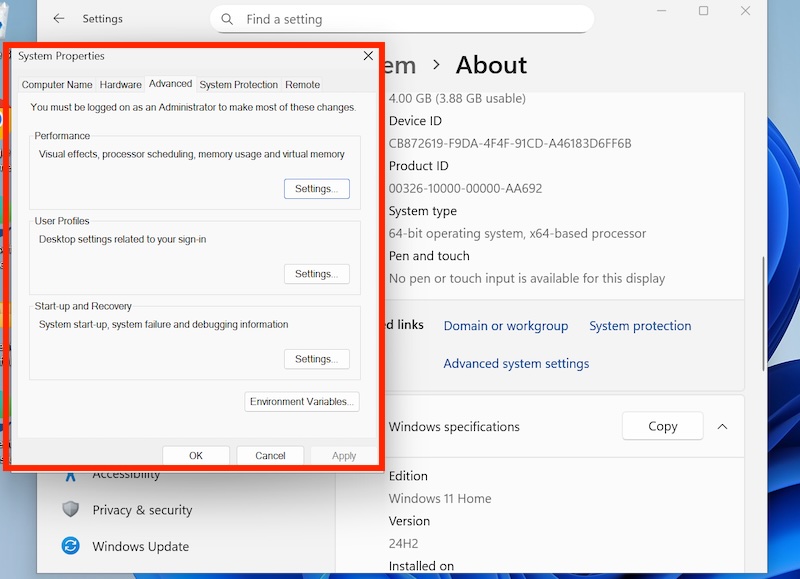
Click on Advanced system settings to open the System Properties dialog
This method integrates well with Windows 11’s design philosophy while still providing access to the traditional System Properties interface when needed.
Method 3: Using Run Dialog
The Run dialog remains one of the most efficient ways to access Windows utilities, and System Properties is no exception.
Steps:
- Press Windows key + R to open the Run dialog
- Type “sysdm.cpl” in the text field
- Press Enter or click OK
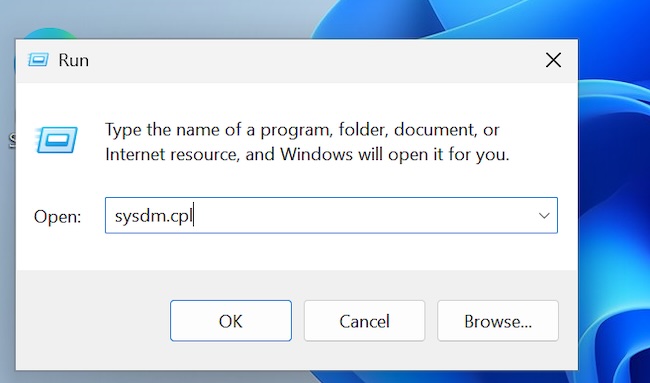
The “sysdm.cpl” command directly launches the System Properties dialog, bypassing any intermediate screens. This method is favored by power users and IT professionals for its speed and reliability.
Method 4: Through Control Panel
Although Windows 11 de-emphasizes the Control Panel in favor of the Settings app, it’s still accessible and provides a familiar path to System Properties for users upgrading from older Windows versions.
Steps:
- Open the Start menu and type “Control Panel”
- Click on Control Panel when it appears in search results
- If you’re in Category view, click on “System and Security”
- Click on “System”
- In the System window, click on “Advanced system settings” in the left panel
Alternatively, if you’re in Large icons or Small icons view in Control Panel, you can directly click on “System” and then proceed to step 5.
Method 5: Right-Click Context Menu on This PC
Windows 11 maintains the traditional right-click context menu functionality for system objects, providing another pathway to System Properties.
Steps:
Open File Explorer (Windows key + E)
Look for This PC in the left navigation panel
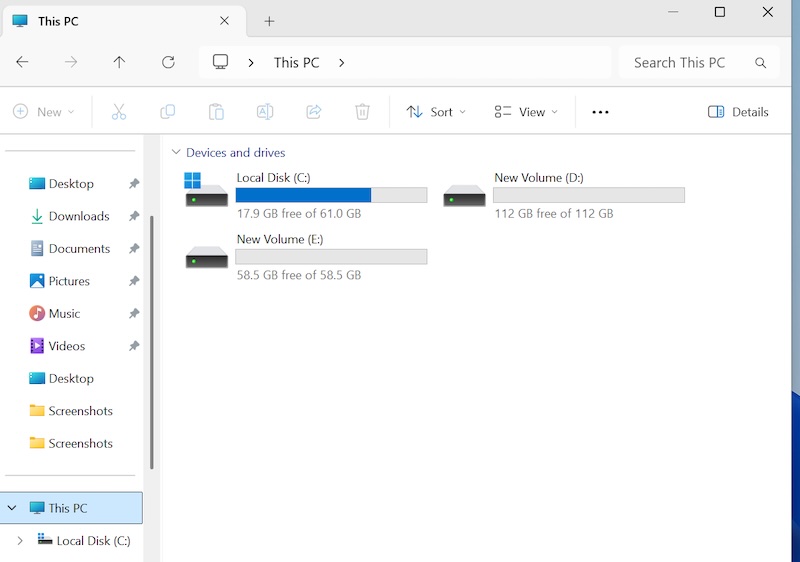
Right-click on This PC
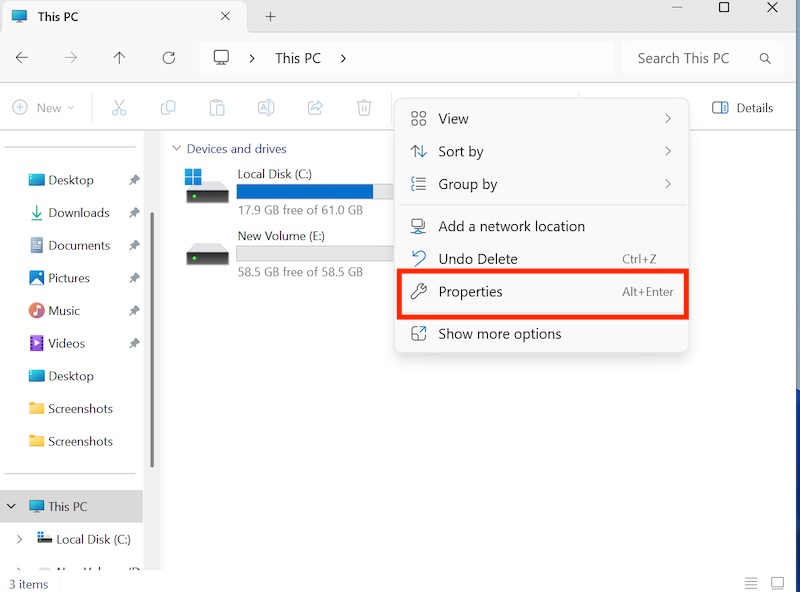
Select Properties from the context menu
In the resulting window, click on Advanced system settings
This method is intuitive for users who frequently work with File Explorer and prefer visual navigation over typing commands.
Method 6: Command Prompt or PowerShell
For users comfortable with command-line interfaces, both Command Prompt and PowerShell can launch System Properties.
Steps for Command Prompt:
- Press Windows key + R to open Run dialog
- Type “cmd” and press Enter
- In the Command Prompt window, type “sysdm.cpl” and press Enter
Steps for PowerShell:
- Right-click on the Start button
- Select “Windows PowerShell” or “Windows Terminal”
- Type “sysdm.cpl” and press Enter
Both methods will directly open the System Properties dialog.
Method 7: Desktop Shortcut
You can create a desktop shortcut for quick access to System Properties, which is particularly useful if you frequently need to access these settings.
Steps:
- Right-click on an empty area of your desktop
- Select “New” > “Shortcut”
- In the location field, type “sysdm.cpl”
- Click “Next”
- Name your shortcut (e.g., “System Properties”)
- Click “Finish”
Now you can double-click this shortcut anytime to open System Properties directly.
Understanding the System Properties Tabs
Once you have System Properties open, you’ll see several tabs, each serving different purposes:
Computer Name Tab: Allows you to view and change your computer’s name, workgroup, or domain membership. This is essential for network identification and management.
Hardware Tab: Provides access to Device Manager and hardware installation settings. Device Manager is crucial for troubleshooting hardware issues and updating drivers.
Advanced Tab: Contains performance settings, user profiles, and startup/recovery options. This is where you can adjust virtual memory, visual effects, and configure how Windows handles system failures.
System Protection Tab: Manages System Restore points and allows you to configure system protection settings for your drives.
Remote Tab: Controls Remote Desktop and Remote Assistance settings, important for remote access and support scenarios.
Keyboard Shortcuts That Help
Several keyboard shortcuts make opening System Properties even faster.
| Shortcut | Function |
|---|---|
| Windows + R | Open Run |
| Windows + I | Open Settings |
| Windows + S | Search |
| Ctrl + Shift + Esc | Task Manager |
| Windows + X | Power User Menu |
Using these shortcuts can significantly speed up navigation in Windows 11.
Why System Properties Still Matters
Despite Microsoft’s gradual migration toward the Settings app, System Properties remains essential because it provides quick access to advanced tools that many users rely on.
Common reasons to open it include:
- Editing environment variables
- Managing restore points
- Configuring Remote Desktop
- Accessing startup settings
- Viewing performance options
- Opening Device Manager
- Changing computer names
- Adjusting virtual memory
Many IT support guides still reference System Properties because it centralizes these advanced options.
Difference Between System Properties and Settings
Many users confuse these two interfaces.
Settings focuses on everyday configuration such as:
- Wi-Fi
- Bluetooth
- Display
- Windows Update
- Personalization
- Accounts
- Privacy
System Properties focuses on advanced administrative settings like:
- Performance
- Recovery
- Environment variables
- System Restore
- Computer identity
- Remote access
Both are important, but they serve different purposes.
Can You Pin System Properties?
Yes.
You can create a shortcut and then:
- Pin it to Start
- Pin it to the taskbar (through the shortcut)
- Add it to Quick Access
- Keep it on the desktop
This is especially useful if you frequently manage Windows settings.
Is System Properties Being Removed?
Microsoft has moved many classic Control Panel pages into the Settings app, but System Properties remains available in Windows 11 because several enterprise and administrative tools still depend on it.
Some links now redirect through Settings before opening the classic dialog, but the underlying utility (sysdm.cpl) continues to work.
Future versions of Windows may relocate additional settings, yet Microsoft has retained System Properties due to its importance for advanced configuration.
Which Method Is the Fastest?
For most users, the quickest options are:
- Windows + R, type
sysdm.cpl, and press Enter. - Search for View advanced system settings.
- Open Settings > System > About > Advanced system settings.
The Run command is particularly convenient because it works consistently across supported Windows versions.
Troubleshooting Common Issues
If you encounter problems accessing System Properties, try running Windows as an administrator, as some system modifications require elevated privileges. Additionally, ensure that Windows services are running properly, as corrupted system files can sometimes interfere with accessing system utilities.
Conclusion
Windows 11 provides multiple pathways to access System Properties, ensuring that users with different preferences and technical comfort levels can reach this important utility.
Whether you prefer the modern Settings app approach, traditional Control Panel navigation, or direct command execution, these methods will help you access the system configuration tools you need. Regular familiarity with System Properties is valuable for system maintenance, troubleshooting, and optimization tasks.