Command Prompt remains one of the most useful built-in tools in Windows 11, even with modern interfaces like Settings, PowerShell, and Windows Terminal. It allows users to interact directly with the operating system using text-based commands. Whether you need to troubleshoot system problems, manage files, run network diagnostics, or perform advanced administrative tasks, Command Prompt is an essential utility.
Many users rely on Command Prompt for tasks that cannot easily be done through graphical menus. From repairing corrupted system files to checking internet connectivity, this tool offers fast and effective control over your PC.

In this guide, you will learn multiple ways to open Command Prompt in Windows 11, including administrator methods, shortcut options, troubleshooting tips, and beginner-friendly explanations.
What is Command Prompt in Windows 11?
Command Prompt, often called CMD, is a command-line interpreter that executes text commands entered by the user. It has been part of Windows for decades and continues to serve as a powerful utility.
Main functions of Command Prompt:
- Running Windows system commands
- Troubleshooting PC problems
- Managing files and directories
- Network configuration and diagnostics
- Executing scripts and batch files
- Performing advanced administrative tasks
Standard CMD vs Administrator CMD:
- Standard CMD: Basic access with limited permissions
- Administrator CMD: Full system-level control for advanced tasks
Why You May Need to Open Command Prompt
There are many reasons Windows users may need CMD:
- Fix system errors
- Run SFC or DISM scans
- Check IP addresses
- Troubleshoot network issues
- Access advanced settings
- Delete stubborn files
- Run batch scripts
- Manage partitions or drives
Because of its versatility, learning how to access Command Prompt quickly can save time and solve many common Windows problems.
Method 1: Open Command Prompt Using the Start Menu
The simplest and most user-friendly method to launch Command Prompt in Windows 11 is via the Start Menu.
Steps:
- Click the Start button on the taskbar or press the Windows key on your keyboard.
- In the search bar, type “Command Prompt” or just “cmd”.
- From the search results, click on Command Prompt.
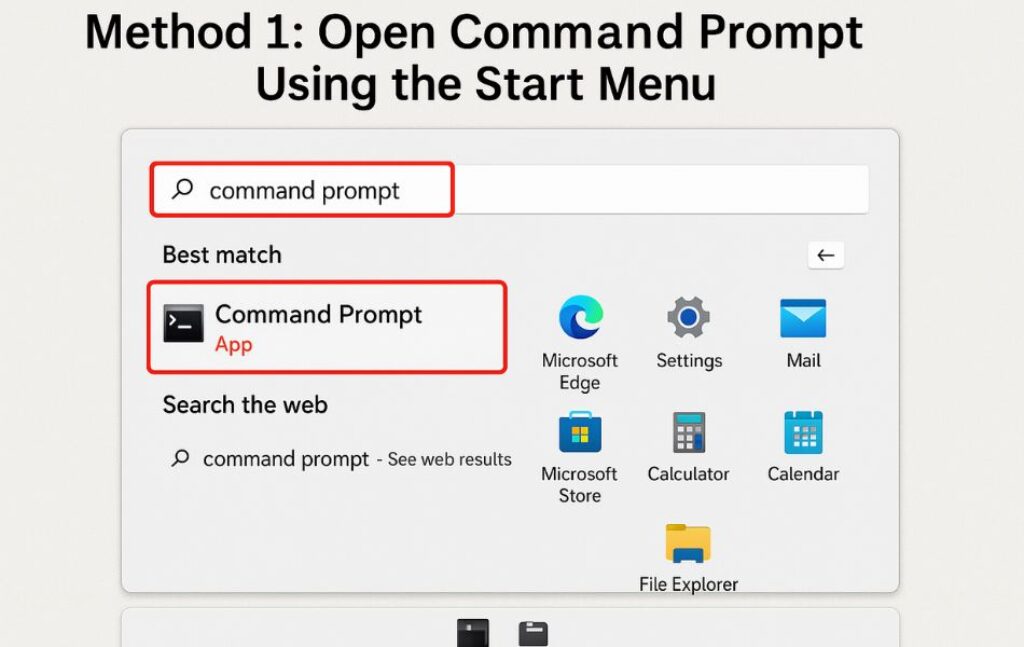
Optional:
- To run Command Prompt as administrator (often required for system-level commands), right-click the result and choose “Run as administrator”.
- You can also click “Run as administrator” on the right-side pane.
Method 2: Use the Run Dialog Box
The Run dialog is a fast way to open Command Prompt.
Steps:
- Press Windows + R on your keyboard to open the Run dialog.
- Type cmd and press Enter.
To run as administrator:
- Use the Ctrl + Shift + Enter shortcut after typing
cmd.
Method 3: Access CMD Through Windows Search
Windows Search in Windows 11 is improved and Bing-integrated. It offers fast access to system apps like Command Prompt.
Steps:
- Press Windows + S to open the search interface.
- Type cmd or command prompt.
- Right-click the result and select Run as administrator (if needed).

This method is quick and fully integrated with Bing’s enhanced search capabilities.
Method 4: Open CMD from the Power User Menu (WinX)
Windows 11 provides a hidden Power User Menu with system tools.
Steps:
- Press Windows + X on your keyboard.
- Choose Terminal (Admin) or Windows Terminal, depending on your system version.
- If you’re in Windows Terminal, you can switch to a Command Prompt tab:
- Click the down-arrow (
∨) on the tab bar. - Select Command Prompt.
- Click the down-arrow (
Note: If Command Prompt doesn’t appear, you may need to configure Windows Terminal to show it. See the advanced section below.
Method 5: Use File Explorer’s Address Bar
This is a neat trick for those working in File Explorer.
Steps:
- Open any folder or This PC in File Explorer.
- Click on the address bar and type
cmd, then press Enter.
This will open the Command Prompt in that folder’s directory — useful for running commands in specific file paths.
Method 6: Create a Desktop Shortcut for Command Prompt
For regular use, you might prefer a shortcut on the desktop.
Steps:
- Right-click on the desktop and choose New > Shortcut.
- In the location field, type: makefileCopyEdit
C:\Windows\System32\cmd.exe - Click Next, give the shortcut a name (e.g., CMD), and click Finish.
To run as admin:
- Right-click the shortcut → Properties → Shortcut tab → click Advanced…
- Check Run as administrator, then click OK.
Method 7: Launch Command Prompt from Task Manager
This method is especially helpful if the system interface is unresponsive.
Steps:
- Press Ctrl + Shift + Esc to open Task Manager.
- Click File > Run new task.
- Type cmd and press Enter.
- To run as admin, check “Create this task with administrative privileges.”
Method 8: Use Windows Terminal with CMD Profile
Windows Terminal is the modern multi-tabbed command-line interface in Windows 11, often replacing older consoles.
Steps:
- Open Windows Terminal via the Start menu or Power User Menu.
- Click the down-arrow next to the tab bar.
- Select Command Prompt.
To make CMD the default:
- In Windows Terminal, click the down-arrow → Settings.
- Under Startup > Default profile, select Command Prompt from the dropdown.
- Save changes.
Method 9: Open CMD in Safe Mode or Recovery
In emergency situations, Command Prompt can be accessed even if Windows won’t boot normally.
Steps (From Recovery Mode):
- Restart your PC and press F11 (or Shift + F8 on some systems) during boot.
- Go to Troubleshoot > Advanced options > Command Prompt.
This is useful for advanced repairs, disk checks, or boot fixes.
Method 10: Using Context Menu (with Registry Hack)
By default, the right-click context menu in Windows 11 does not show CMD. However, you can add it manually via a registry tweak.
⚠️ Warning: Modifying the registry can be risky. Proceed with caution.
Steps:
- Press Windows + R, type
regedit, and press Enter. - Navigate to:
HKEY_CLASSES_ROOT\Directory\Background\shell\ - Create a new key named CommandPrompt.
- Inside it, create another key called command.
- Set the default value of the command key to:
cmd.exe /s /k pushd "%V" - Right-click on the desktop or folder → you’ll now see “Command Prompt” in the context menu.
Common Command Prompt Commands for Beginners
Here are useful beginner commands:
System Commands:
sfc /scannow
chkdsk
tasklist
Network Commands:
ipconfig
ping google.com
netstat
File Commands:
dir
cd
copy
del
Utility Commands:
cls
exit
help
These commands help users understand CMD’s power.
Troubleshooting Command Prompt Issues
Sometimes CMD may not open correctly.
Problem: Command Prompt closes immediately
Fix:
- Scan for malware
- Run SFC scan
- Create new user account
Problem: CMD missing from search
Fix:
- Rebuild search index
- Use Run dialog
- Check system files
Problem: Access denied
Fix:
- Use administrator mode
- Check account permissions
Problem: Corrupted system files
Fix:
sfc /scannow
DISM /Online /Cleanup-Image /RestoreHealth
Command Prompt vs PowerShell vs Windows Terminal
Command Prompt:
- Traditional
- Lightweight
- Good for basic commands
PowerShell:
- More advanced
- Supports scripting
- Better for administrators
Windows Terminal:
- Modern interface
- Multiple shells
- Tabs and customization
Best choice:
- Beginners: Command Prompt
- IT Pros: PowerShell
- Modern users: Windows Terminal
Safety Tips While Using Command Prompt
Because CMD has powerful control, use it responsibly.
Tips:
- Avoid unknown commands
- Always verify syntax
- Backup important data
- Use admin rights carefully
- Do not delete system files
Incorrect commands can damage Windows installations.
Advanced Tips
Open CMD in a folder:
Use File Explorer address bar.
Keyboard shortcuts:
- Win + R
- Win + X
- Ctrl + Shift + Enter
Customize CMD:
- Change colors
- Adjust font
- Modify window size
Run multiple commands:
command1 && command2These tips improve productivity.
Conclusion
Mastering the various methods to open Command Prompt in Windows 11 is essential for efficient system navigation, troubleshooting, and administration. Whether you’re a power user, IT professional, or someone just beginning to explore Windows’ deeper functionality, having quick access to CMD can streamline many technical tasks.
From the Start Menu and Run dialog to more advanced options like Windows Terminal or Safe Mode access, this guide ensures you’re equipped for any situation. Running Command Prompt with administrative privileges unlocks even more control, making it vital for performing system repairs, executing network commands, or managing files.
Additionally, customization options and integration within Windows Terminal provide a more modern and flexible command-line experience. By learning and using these ten different methods, you gain not just convenience but also the confidence to handle a wide range of computing challenges. Keep this knowledge handy—it can be a powerful tool in your Windows 11 toolkit.
Frequently Asked Questions (FAQs)
What is the difference between CMD and Windows Terminal?
CMD is the traditional command-line interface, while Windows Terminal is a modern shell supporting multiple profiles like CMD, PowerShell, and WSL (Linux). You can run CMD inside Windows Terminal.
Do I need admin privileges to use CMD?
Not always. Some commands (like checking IP) can be run in normal mode, but others (like system file scans) require elevated access (Run as Administrator).
Can I customize the Command Prompt?
Yes! Right-click the title bar → Properties to change font, color, layout, and more. You can also use the Windows Terminal for even more customization.